
The iDonate Support Portal shows every support ticket your organization has opened with iDonate. You can follow each ticket's progress, reply to our team, and file new requests.
Who can use the portal
Staff at iDonate client organizations who have worked with iDonate Support receive an email invitation to the portal. When a colleague's first support ticket is resolved, they receive their own invitation automatically.
Create your account from the invitation
- Open the invitation email from noreply@idonate.com.
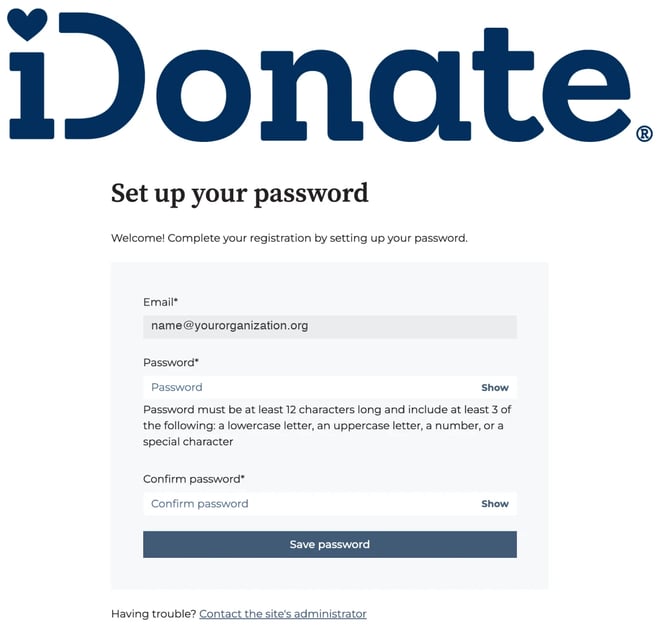
- Click Create password.
- In Password, enter a password that is at least 12 characters long and includes at least three of these: a lowercase letter, an uppercase letter, a number, or a special character.
- Enter the same password again in Confirm password.
- Click Save password.
If you can't find the invitation, check your spam or junk folder for an email from noreply@idonate.com.
Sign in to the portal
- Open the portal at this address: https://www.idonate.com/support-portal
- Enter your email address and password.
- Click Sign in.
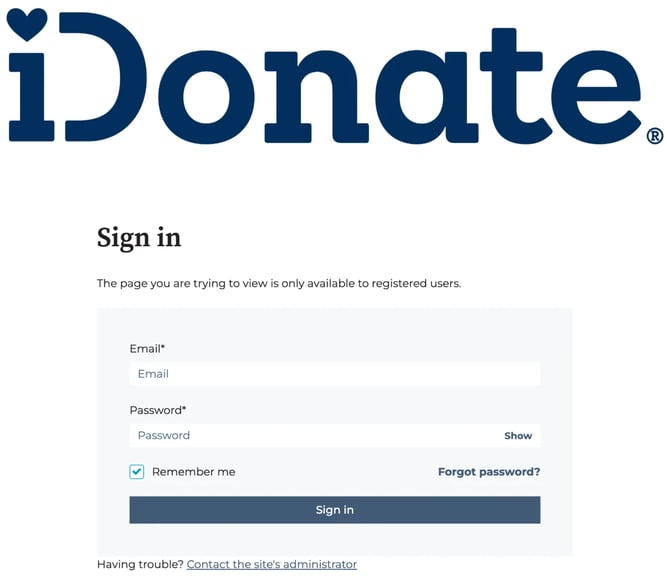
To stay signed in on your computer, leave Remember me checked. If you forget your password, click Forgot password? on the sign-in page.
View your organization's tickets
The portal opens on My view, which lists only the tickets you requested yourself.
- Click Organization view to see every ticket from your organization, including tickets your colleagues filed.
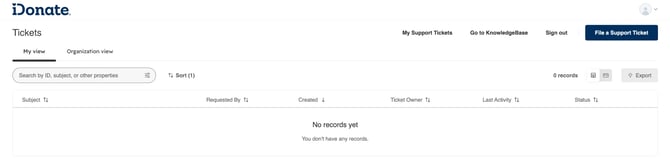
Each ticket shows its subject, who requested it, when it was created, the iDonate team member working on it, its most recent activity, and whether it is Open or Closed.
To find a ticket, type its ticket ID or a word from its subject into the search box. Click Sort to change the order of the list, or Export to download it. To get back to our help articles, click Go to KnowledgeBase at the top of the portal.
Read and reply to a ticket
- Click a ticket to open it.
- Read the full conversation between your organization and iDonate Support.
- Type your reply in the Send message box.
- Click Send.
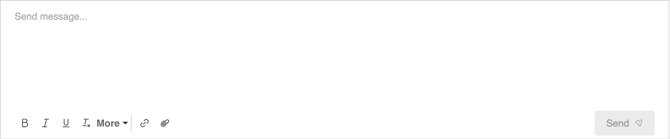
To attach a file, click the paperclip icon before you click Send. You can reply to a ticket even after it has been closed.
File a new support ticket
- Click File a Support Ticket.
- Fill out the support request form and submit it.
If tickets seem to be missing
The portal shows the tickets connected to your organization's account with iDonate. If your organization has more than one location or account with us, you may only see tickets for the location your email address is connected to. File a support ticket if you expect to see tickets that aren't listed, and our team will look into it.
Still need help?
If you have trouble signing in or using the portal, submit a support request and our team will help: https://share.hsforms.com/1LitsnL29R8GZjBSprTNe5A1ni54