
The Arrange view on the Designations page controls how designations are grouped and the order donors see them in. The order you set here is used by every campaign and giving form, so you only arrange it once.
To create or edit individual designations, see Managing Designations.
Open the Arrange View
Go to Fundraising > Designations and click Arrange in the top right. Click List to return to the table view. Your search term and the Hide Archived setting carry over when you switch.
Each group appears as a card showing the group name and the number of designations in it. Each designation row shows its title and Fund ID. A designation that belongs to more than one group shows a tag for each group.
Designations that aren't in any group are listed under No Group, which always stays at the bottom of the page. Use Expand all / Collapse all at the top of the page to open or close every group at once.
Create a Group
- Click + New > Designation Group.
- Enter a name and save.
The new group is added to the bottom of the list, just above No Group, and sorts its designations A→Z.
To rename or delete a group, click the pencil next to the group name. Deleting a group does not delete its designations. They move to No Group unless they belong to another group.
Add Designations to a Group
- Click Manage designations in the group's header.
- Search by designation name, or scroll the alphabetical list.
- Check a designation to add it to the group. Uncheck it to remove it. Use Select All or Deselect All to change every designation at once.
The group's count updates as you make changes.
A designation can belong to more than one group.
Reorder Groups
Drag a group card by its handle to move the whole group up or down. A line shows where the group will land. The new order is saved when you drop it. No Group can't be moved.
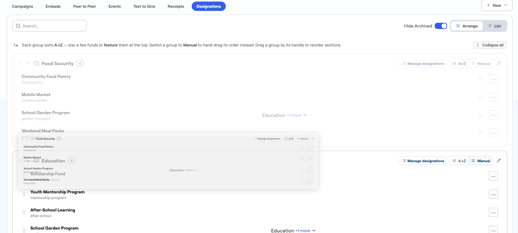
Sort Designations Within a Group
Each group has its own sort mode, set with the A→Z / Manual toggle on the group card. New groups start in A→Z.
A group saves its starred designations and its manual order separately. Switching modes keeps both, so you can switch back and forth without redoing your work.
A→Z
Designations are listed alphabetically by title. When you add a designation to the group, it's placed in the right spot automatically.
To keep a designation at the top of the group, click its star. Starred designations are listed first, also in alphabetical order, followed by the rest of the group. Click the star again to return the designation to its alphabetical position.
Each designation's … menu has Edit and Archive (or Unarchive).
Manual
Drag designations by their handles into any order. A line shows where the designation will land, and the order is saved when you drop it. Stars aren't available in Manual mode, because you control the full order.
In long groups, use the designation's … menu instead of dragging. It has Edit, Move to top, Move to bottom, and Archive (or Unarchive).
How Campaigns and Forms Use This Order
Campaigns and giving forms choose which designations to show. The order always comes from the Arrange view.
Campaigns
- Go to Fundraising > Campaigns, select a campaign, and click Edit.
- Click into the Select Designations field.
- Choose designations:
- Add by group: Check a group to add every designation in it. Uncheck it to remove them.
- Designations: Check individual designations that aren't in a group.
- Select All / Deselect All: Add or remove every group and designation.
- Click Update Campaign.
Giving Forms
On a Pop-up Giving Form or Giving Form, the same Select Designations field is in the Donation Options section of the editor, below Allow donor to choose multiple designations. It lists groups and designations in the same order and works the same way.
On Classic forms, designations and their order are managed on the campaign detail page. A banner in the form editor's Donation Options section points there when Allow donor to choose where their donation goes is on.