
Connect your organization's Double the Donation (DtD) 360MatchPro account to iDonate so donations with corporate matching information are sent to DtD for follow-up.
Prerequisites
Before beginning, make sure you have:
- Access to an iDonate Admin user.
- An active DtD 360MatchPro account.
- Your 360MatchPro public key and private key.
- Corporate matching turned on for your organization. If you are unsure whether it is on, contact iDonate Support.
If your organization does not have a Double the Donation account, contact iDonate Support. Accounts cannot be created from the marketplace.
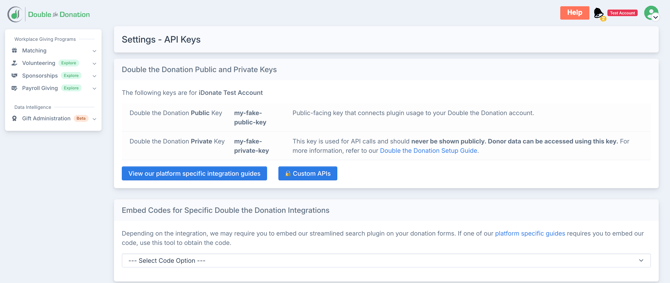
Finding Your 360MatchPro Keys
- Sign in to your Double the Donation dashboard.
- Navigate to Organization Settings > API Keys.
- Copy your public key and private key.
Connecting Double the Donation
- In iDonate, navigate to Integrations > Double the Donation.
- Click Configure and enter your Public Key and Private Key.
- Optionally, enter your 360MatchPro Username.
- Click Finish.
Adding Corporate Matching to an Embed
Connecting DtD does not change your giving forms. To ask donors for their employer, turn on the corporate matching prompt on each giving form that should show it.
- Navigate to Fundraising > Embeds > Choose an Embed > Edit.
- Expand Additional Options.
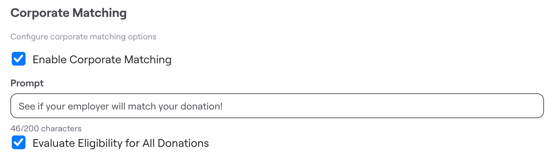
- Turn on Enable Corporate Matching.
- Optionally customize the Prompt for your corporate matching ask.
- Click Save, then Publish.
For the other form settings, see The Giving Form Builder.
Choosing Which Donations Are Sent
The Evaluate Eligibility for All Donations setting on the Corporate Matching controls which successful donations from that form are sent to Double the Donation. It is checked by default.
- Checked: Every donation on the form is sent, whether or not the donor selects an employer. DtD checks eligibility on its own, for example from the donor's email domain, and follows up with donors who may qualify.
- Unchecked: Only donations where the donor selects an employer are sent.
How Matching Gifts Are Sent
Once connected, iDonate sends donations with corporate matching information to DtD using your saved keys. DtD then handles follow-up with donors about their employer's matching program. Matching gift records and donor follow-up are managed in your 360MatchPro account.
Don't Have A DtD Account?
Have a question about your DtD account? Visit Double the Donation's Knowledge Base for more information.