
Saved views let you preserve a specific combination of filters, columns, and search settings in Reporting so you can return to them without reconfiguring each time. Any saved view can also be used as the basis for a scheduled report delivery.
Each report tab starts with a Default view. To switch between saved views, click the Default dropdown in the top-right corner of the table. All saved views for that tab are listed there and can be searched by name.
Creating a Saved View
There are two ways to create a new saved view.
From the Default view after making changes
- Apply your filters, columns, or search on the Default view. A Create New View button will appear in the toolbar.
- Click Create New View.
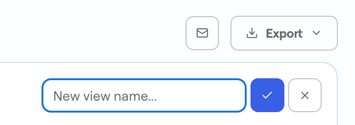
- Enter a name in the field that appears and click the blue checkmark to save.

Using the + button
- Click the + button next to the view dropdown. If you are on an existing saved view, the new view will start as a copy of that view's filters and columns.
- Enter a name in the field that appears and click the blue checkmark to save.
- Apply or adjust your filters, columns, and search as needed.
Managing Saved Views
When a saved view is active, four action icons appear to the right of the view name:
- Pencil: Rename the view.
- Trash: Delete the view.
- Lock: Toggle visibility between private (visible only to you) and public (visible to your entire organization).
- Checkmark: Set as the default view when navigating to Reporting.
- Folder Tree: Toggle organization chapter rollup.
Unsaved Changes
Whenever you modify filters, columns, or search on an active view, a red indicator dot will appear on the affected filter or column button and on the view name in the dropdown. This indicates that the current view has unsaved changes. From here you can:
- Click Create New View to save the changes as a new view.
- Click Reset Changes to discard your changes and return to the most recently saved version of the view.
