
This article is intended for technical users who are building or modifying integrations directly.
iDonate natively integrates with several platforms, but you may need to connect iDonate to software we don't support out of the box, such as Mailchimp, Slack, or QuickBooks. Custom workflows make this possible.
A custom workflow listens for specific activity in iDonate (like a new donation or a recurring schedule being cancelled) and automatically sends that information to another platform of your choice. Workflows are built and managed with Prismatic, the integration platform embedded in iDonate.
How It Works
Every custom workflow starts with a trigger, the iDonate event that kicks the workflow into motion. When you enable a workflow, iDonate registers it to start listening for the event types you selected. When one of those events occurs, iDonate sends the relevant data to your workflow, which can then route it to your connected software.
When a workflow is deleted, iDonate automatically unregisters it and stops sending data.
Workflow Templates
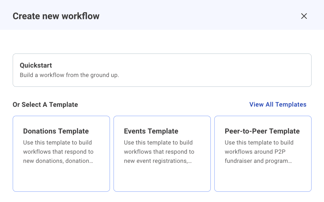
iDonate provides three pre-built workflow templates to help you get started. Each template comes pre-configured with a recommended set of event types, but you can add or remove event types to match your needs.
Donations
Best for syncing gift data to accounting software or a CRM. Includes transaction, recurring donation, and schedule events.
Events
Best for sending attendee confirmations or updating a contact list. Includes event registration and ticket purchase events.
Peer-to-Peer (P2P)
Best for tracking fundraiser activity, such as notifying a team when a fundraiser hits a milestone. Includes P2P program and fundraiser events.
Managing Custom Workflows
Custom workflows must use the iDonate Custom Workflow Trigger. Other trigger types will not receive iDonate events.
- Navigate to Integrations > Custom Workflows.
- Click + Add new workflow.
- Select a workflow template that best matches your use case, or
- Select Quickstart, then search iDonate in the app search bar, select iDonate, and click iDonate Custom Workflow Trigger.
- In the iDonate Custom Workflow Trigger step, choose the event types you want the workflow to listen to. For a full list of available event types, see Creating and Managing Webhooks.
- Build out the remaining steps in your workflow to route data to your destination platform.
- When you are ready, open the Save dropdown, select Save as new version, and enable the workflow.
- To delete a workflow, click the triple-dot menu in the top right of the workflow and select Delete.
Connecting to a Destination Platform
For custom workflows, Prismatic's low-code builder includes a library of pre-built connectors for popular platforms. Search for your destination platform in the component library, add it as a step in your workflow, and configure it with the appropriate credentials and field mappings.
For detailed guidance on using the workflow builder, refer to Prismatic's Workflow Builder or Workflow Templates documentation.
If your destination platform doesn't have a native connector in the component library, you can use the HTTP component to make direct API calls to any platform with a public API.
Referencing iDonate Data in Your Workflow
When configuring steps in your workflow, you can reference the data sent by iDonate from the trigger. Select Webhook Event Trigger as the reference step and use results.body.data.payload to access the event data. The fields available in the payload depend on the event type. Refer to Webhook Payload Structures for a full reference.
Example: Connecting to Mailchimp
This is a simplified example. Depending on your needs, your workflow may require additional steps or logic.
This example demonstrates how to automatically add a donor to a Mailchimp audience when a transaction is completed in iDonate.
First, create a Registered App in Mailchimp:
- Navigate to the Mailchimp OAuth Apps in your Mailchimp account settings.
- Click Register An App.
- Provide all the required information and click Create.
- Redirect URI must be
https://oauth2.prismatic.io/callback.
- Redirect URI must be
- Once created, save your Client ID and Client Secret.
Next, configure the Mailchimp component in your custom workflow:
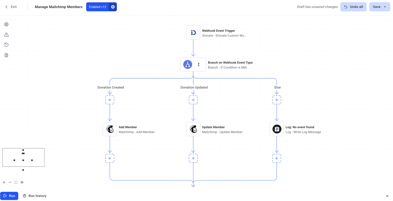
- In the workflow builder, add a Mailchimp component such as Add Member to the branch that corresponds to your desired webhook event.
- Click Add new connection and fill in the following:
- Connection: OAuth 2.0.
- Name: A label to identify this connection.
- Client Credentials: Paste the Client ID and Client Secret from the application created in Mailchimp.
- Save the connection and continue building your workflow steps.
- In the Mailchimp Add Member step, provide a List ID, Email, and Status.
- For Email, set the reference step to Webhook Event Trigger and use the path
results.body.data.payload.transactions.0.contact.emailto
reference the donor email from the iDonate webhook.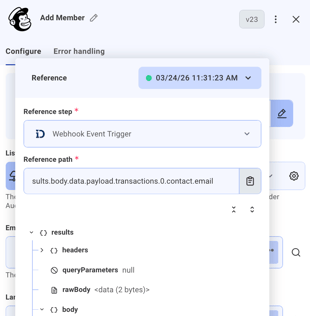
- For Email, set the reference step to Webhook Event Trigger and use the path
- When you are ready, open the Save dropdown and select Save as new version. Then enable the workflow. iDonate will automatically register it to begin receiving the selected events.