
Many employers match their employees' charitable donations, but most donors never submit the request. iDonate integrates with Double the Donation's (DtD) 360MatchPro so donors can name their employer on your giving form, and DtD follows up with eligible donors to help them submit a match.
To set up the integration, see Setting up Double the Donation.
How It Works
- The donor searches for their employer on your embed
- After the donation is submitted, the donor's details are sent to DtD.
- If the donor selected an employer, iDonate creates a matched donation record for the expected match once the original donation completes.
- DtD emails the donor with their employer's matching guidelines and submission form.
- iDonate checks the match status with DtD daily and updates the matched donation.
- The employer pays your organization directly.
What Donors See
Donors can optionally search for their employer while giving. Results appear as they type, with these possible outcomes:
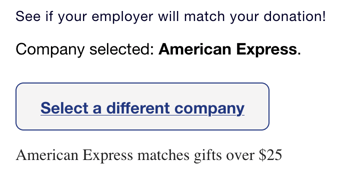
- The company matches donations. The donor sees the company's minimum, such as "American Express matches donations over $25." Companies with no minimum show $1.
- The company isn't listed. The results end with "Don't see your company? Confirm your entry," followed by what the donor typed. The donor can select it to use that name.
Matched Donations
After the donation, DtD manages the matching process with the donor, including:
- Emails with the employer's matching guidelines and a link to its submission form.
- Reminders for donors who have not submitted a match.
- Tracking the status of each match.
You manage these emails, match records, and statuses in your 360MatchPro account.
Make sure to review and customize your Automated Outreach in DtD to match your organization preferences and branding.
When a donor selects an employer, iDonate creates a matched donation once the original donation completes. The matched donation is a separate transaction linked to the original. To find matched donations, navigate to Reporting > Donations and filter Source by Corporate Matching.
Each day, iDonate checks the match with DtD and updates the matched donation status:
- Pending: The match is not complete. This includes donors who have not submitted a match request and matches the employer has not paid yet.
- Complete: DtD reports the match as complete.
- Cancelled: DtD reports the donor as ineligible. A note is added to the matched donation.
Pending matches stay pending until DtD reports them complete or ineligible. They do not expire.
The matched donation amount is an estimate. It copies the original donation, including the fees deducted from it, and does not reflect the employer's match ratio, cap, or minimum. For the actual match amount, check your 360MatchPro account.
Billing
DtD bills your organization directly. iDonate does not charge a fee for the integration.
The service is free until a donor completes a match. To continue after that, subscribe in 360MatchPro and keep a credit card on file. DtD charges a 10% fee on matched donations to that card. See DtD's pricing for more information.