
This article guides through how to connect iDonate to Virtuous, configure settings, and manage the connection over time.
Prerequisites
Before beginning, make sure you have:
- Access to an iDonate Admin user.
- Admin access to your Virtuous account.
Connecting to Virtuous
In Virtuous
- Click Settings > All Settings > Connectivity > API Keys (not Application Keys).
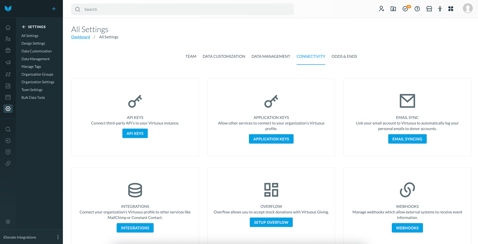
- If needed, create a new API Key by clicking Create an API Key, set a Name and Permission Group, and Save.
- In the API Keys table, find the key you want to use and click the Edit button.

- Click the eye icon to display the API Key value and copy it.
API Keys serve as long-term credentials that remain active until manually revoked. Since they grant continuous access, it’s essential to keep them securely stored and avoid sharing them through email, chat, or any unsecured text files.
In iDonate
-
After obtaining your Virtuous API Key, go to iDonate and navigate to Settings > Integrations.
- Click Virtuous from within the Marketplace which will open the Virtuous Config Wizard.
- Click Configure.
- On the Virtuous Connection page input your API Key and click Next.
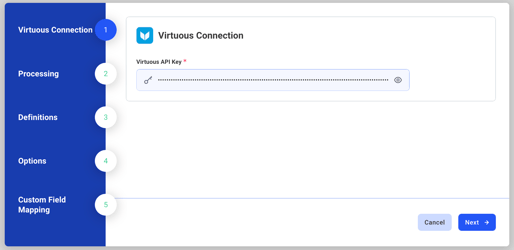
Configurations
The following configurations determine how data flows and behaves within your Virtuous integration. Review each setting carefully as they directly impact how information is processed and synced.
Processing
- Donor Fee Processor: Determines how donor fees are processed.
- Donor Fee Designation: The designation that will receive all donor covered fees. Required if "Donor Fee Processor" is set to "Standard". Defaults to "Standard".
Definitions
- Default Designation: When a donation occurs and does not have an associated designation, the export will use this designation when exporting to your CRM.
- Populate Receipt: Notifies Virtuous that a receipt has already been sent to a donor. Disabled by default.
- Segment Map: Determines if iDonate Campaigns or Reference Codes get mapped to Virtuous Segments. Defaults to Campaign.
Options
- Create Projects: When enabled, creates projects or designations that are not yet in Virtuous. Enabled by default.
- Label Donation Source as Beta: Optionally append Beta to the Virtuous Transaction Source for testing. When enabled, donations are sent to a separate batch, keeping test data distinct from live iDonate records. Disabled by default.
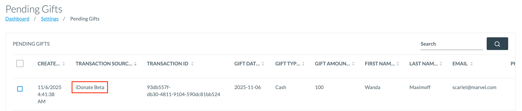
- Group eCheck/ACH Donations Separately: When enabled, bank/EFT donations are placed in a separate Virtuous batch from card and other gifts.
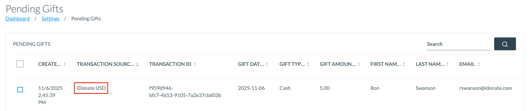
- Group Donations by Currency: Optionally append currency code to the Virtuous Transaction Source, resulting in separate batches for each currency (e.g. USD vs. CAD). Disabled by default.
Custom Field Mapping
This step lets you send iDonate values into custom fields on the Virtuous gift record. You build a list of rows, where each row maps one iDonate source field to one Virtuous gift custom field. If you add no mappings, nothing changes and your existing gifts behave exactly as before. Two checkboxes sit above the mapping rows.- Populate Notes Field from Description: When enabled, the gift's Notes field in Virtuous is filled from the iDonate Legacy Description custom field.
- Transform State Abbreviation to Full Names: When enabled, any row whose source is a state field (e.g. Contact State) writes the full state name instead of the abbreviation (e.g. NY becomes New York). Non-state rows are never affected.
- Field Mappings: Click Add to Field Mappings to create a row. Pick the iDonate Source Field to send and the Virtuous Custom Field to write it to. Target a built-in default field's name to override it. Recurring and schedule fields (Schedule, Schedule ID, Schedule Start Date, Schedule End Date, Schedule Count, Recurring Count, and Frequency) cannot be used as mapping targets and are skipped.
Not seeing a custom field? Only custom fields created on the Gift object in Virtuous appear in the Virtuous Custom Field dropdown. If a field you expect is missing, confirm in Virtuous that it is a Gift object custom field and Show On Import is enabled.
After reconfiguring any settings in the Config Wizard, be sure to click Finish on the final step. Changes are only saved once you complete the wizard by selecting Finish.
For a detailed breakdown of how iDonate data maps to Virtuous objects and fields, see Virtuous Field Mapping. To pause or deactivate this integration, see Managing an Active Integration in Integrations Overview.
Virtuous Gift & Contact Importer
As donations are made through iDonate, that data is automatically sent to Virtuous, where it is processed in nightly batches. Each batch includes new gifts, recurring donations, and any new supporter profiles created since the previous batch.
How batching works:
- Donations are received. As transactions occur in iDonate throughout the day, they are sent to Virtuous and held in the Pending Gifts table.
- Transactions are bundled into imports. Each night Virtuous groups the pending transactions into batch imports.
- Imports are processed. Virtuous processes each import and prepares the data for review.
- Your team reviews the import. An admin reviews the imported transactions in Virtuous to confirm everything looks correct.
- The import is run. Once reviewed, click Import to finalize the import. This creates the actual Gift records in Virtuous and triggers notifications to any connected subscribers.
For more information, see the Virtuous documentation on the Gift & Contact Importer.
Contact Matching
This integration automatically matches incoming donations to existing contacts in Virtuous using the donor's reference ID. If a donor does not already exist in Virtuous, a new contact will not be created automatically. Instead, the gift will appear in the importer with a Match Needed status.
To enable automatic contact creation for new donors, turn on Enable Ability to Create New Contacts With No Match on Import in your Virtuous Organization Settings. For more information, see Virtuous: Match Needed, Update Needed, Ready for Import.
Important
Make sure the values mapped to Virtuous Segments and Contacts on your iDonate giving pages match what is already configured in your Virtuous instance. The integration maps incoming donation data to existing records but will not create new ones automatically.