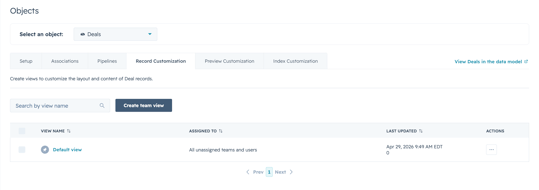
This guide walks you through connecting your iDonate organization to HubSpot, configuring the integration, and managing the connection going forward.
Prerequisites
Before beginning, make sure you have:
- Access to an iDonate Admin user.
- Admin access to your HubSpot account.
Connecting to HubSpot
- From within iDonate, click Integrations.
- In the Marketplace, click HubSpot.
- Click Configure.
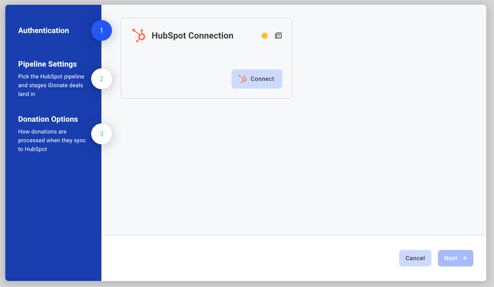
- Click Connect, sign in to HubSpot, and choose the account you want to link.
What Gets Created In HubSpot Automatically
The integration provisions these resources the first time the configuration wizard runs. Re-running setup never creates duplicates.
iDonate Donations Deal pipeline
A new Deal pipeline named iDonate Donations with three stages:
| Stage | Purpose |
|---|---|
| Processed | New donations land here when first synced. |
| Refunded | Automatically applied (per Refund Behavior) when iDonate sends a refund event. |
| Cancelled | Automatically applied when iDonate sends a cancellation event. |
iDonate Property Group
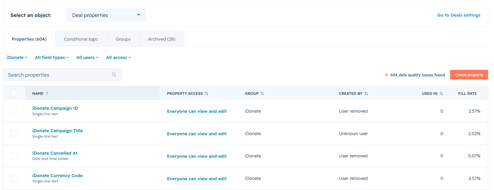
The integration adds an iDonate property group to your Deals, Contacts, Line Items, and Products, populated with all the custom properties it writes. You'll find them under Settings > Properties for each object. This can be useful for building filters, lists, and reports. See HubSpot Field Mapping for the full field set.
Configurations
The following configurations determine how data flows and behaves within your HubSpot integration. Review each setting carefully as they directly impact how information is processed and synced.
Pipeline Settings
- Donation Pipeline: HubSpot Deal pipeline where all iDonate deals are created. It is recommended to use the auto-created iDonate Donations pipeline. You can choose a different pipeline if needed.
- Donation Deal Stage: Stage new iDonate donations are assigned.
- Refunded Deal Stage: Stage refunded donations move to.
- Cancelled Deal Stage: Stage cancelled donations move to.
Donation Options
- Refund Behavior: Determines how refunded donations are reflected in HubSpot. See Refund behavior options below.
- Default Designation Product: Default designation when donations do not specify one.
- Donor Fee Processor: Standard or Rollup. In Standard mode, donor covered fees become a separate Line Item on each Deal. In Rollup mode, fees are equally distributed across designation Line Items by iDonate. See the how donor fees are processed guide for details.
- Donor Fee Product: The HubSpot Product that will receive all donor covered fees. Required if Donor Fee Processor is set to Standard. Defaults to Standard.
Refund Behavior Options
| Move the Deal to the Refunded stage (default) | Original Deal moves to the configured Refunded Deal Stage. Amount is unchanged. Refund metadata is updated on the Deal. |
| Move the Deal to the Refunded stage and zero the amount | Original Deal moves to the configured Refunded Deal Stage AND its amount is set to $0. Same metadata updates as above. |
| Create an offsetting refund Deal | Original Deal stays in place, but a brand new Deal is created with a negative amount equal to the original (e.g. $50 original → -$50 reversing). The reversing Deal is in the Refunded Deal Stage, tagged as a refund, and pointed back to the original. Contact associations from the original are copied over. |
Viewing iDonate Data On HubSpot Records
By default, HubSpot's record sidebars and table views show a small subset of properties. The iDonate properties are synced to every Deal, Contact, Line Item, and Product and just may not appear in your default view until you surface them. Two ways to see them:
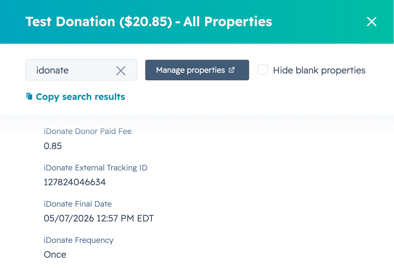
- One-off lookup: open the record (e.g. Deal), click Actions > View all properties, and search "idonate" to filter.
- Persistent view: customize the sidebar/table to show iDonate properties. On a Deal, click Actions > Customize the 'About this deal' section. On table views, click the Edit columns button above the table. Add the iDonate properties most useful for your team (kind, transaction ID, campaign, frequency, etc.).