
This guide walks you through connecting your iDonate organization to Planning Center, configuring the integration, and managing the connection going forward.
What Gets Synced
| In iDonate | Becomes in Planning Center Giving |
|---|---|
| Donor (contact) | A Person in your Planning Center People list |
| Donation (gift) | A Donation, placed inside a Batch |
| Designation | A Fund |
| Organization name (when it matches) | The Campus on the donation |
For a detailed breakdown of how iDonate data maps to Planning Center objects and fields, see Planning Center Field Mapping.
Before you begin
You will need the following:
- An active iDonate account.
- A Planning Center account with the Giving product enabled.
- A Planning Center login with permission to manage Giving (a Giving Manager or Administrator), so the integration can create batches, donations, and funds.
Connecting to Planning Center
iDonate uses Planning Center's own secure sign-in (OAuth 2.0), so iDonate never sees or stores your Planning Center password, and you can revoke access at any time from your Planning Center account settings.
- On the Integrations page, click Planning Center in the Marketplace to open the Config Wizard.
- Click Configure.
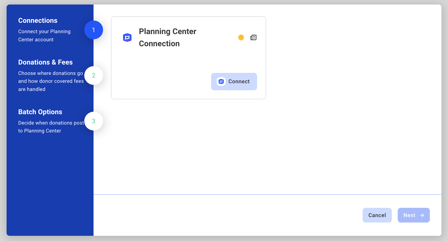
- On the Connections page click Connect and sign in with your Planning Center credentials.
Configurations
After connecting, configure how donations are handled. The remaining setup is organized into two short pages.
Donations & Fees
These settings tell the integration how to handle designations and processing fees.
- Default Designation: The fund to use when a gift has no designation, or when a designation cannot be matched to one of your funds. Choose a general or catch-all fund here. This is required.
- Donor Fee Processor: Determines how donor fees are processed.
- Donor Fee Designation: The designation that will receive all donor covered fees. Required if "Donor Fee Processor" is set to "Standard".
Batch Options
These settings control how donations are grouped into batches in Planning Center.
- Batch Strategy:
- Per Donation: Each donation goes into its own batch, and that batch is committed (finalized) immediately. Choose this if you want every gift to post right away.
- Daily: All of a day's donations accumulate into a single open batch named
iDonate <date>. That batch is committed automatically on a schedule (see below), so a full day of giving posts together as one batch. Today's batch stays open until the day is complete, and empty days are skipped.
- Daily Commit Schedule: Only relevant if you chose Daily. This is the time each day when the previous day's batch is finalized. The default is 1:00 AM, US Eastern time. You can change the time and time zone to match your organization.
After reconfiguring any settings in the Config Wizard, be sure to click Finish on the final step. Changes are only saved once you complete the wizard by selecting Finish.
Labels on Donations
The integration labels donations so you can filter and report on them. Only the labels that apply to a given gift are added. The formats are:
-
Donation Source:
idonate -
Recurring Donations:
idonate-recurring -
Campaign:
campaign-<campaign-name> - Form:
form-<form-name> -
Tribute:
tribute-<in-memory-of | in-honor-of> - P2P Program:
p2p-program-<program-name>
Notes on donations
Each donation carries a single admin note for context that does not fit the standard fields. Only the parts that apply to a given gift are included, combined into one note. The formats are:
- Organization Details:
Organization: <Organization Name> - Event Details:
Event: <Event Name> — N ticket(s) (<Ticket Name>) - Tribute Details:
Tribute: <In Honor Of | In Memory Of> <Honoree Name> — "<Message>" — notify <Recipient Name> (<Recipient Email>) - P2P Details:
P2P: <Program Name> — Team: <Team Name> — Fundraiser: <Fundraiser Name> - Recurring Donations:
Recurring: <Frequency> (schedule <Schedule ID>)
Refunds and Cancellations
A refund in iDonate issues a matching refund on the Planning Center donation (skipped quietly if that donation cannot be refunded). A cancellation in iDonate marks the corresponding donation as failed, with a note that it was cancelled.
Planning Center API Limitations
A few Planning Center objects cannot be created or updated by outside systems, because the Planning Center API does not support it. In each case the integration still captures the associated revenue as a donation and preserves the context in the donation's note and labels; it simply does not create the object itself:
- Recurring donation schedules: Recurring gifts are captured as individual donations per installment, tagged iDonate Recurring.
- Registrations (attendee) records: Event and ticket revenue is captured as donations in Giving.
- Campuses: Donations on behalf of an Organization are matched to an existing campus by name, while unmatched names are recorded in the Donation note.
To pause or deactivate this integration, see Managing an Active Integration in Integrations Overview. If you run into issues with your integration, contact iDonate Support with any relevant details from the Integrations Logs tab.